📝 Video Generation
Description
< What is it? >
- Definition: video generation produces a sequence of visual frames from a condition such as a text prompt or an image. The model must represent both the appearance of a scene and how it changes over time.
- Example: “A lion sits on a rock in a sunlit savanna, then smiles” specifies a subject, setting, and action. A successful result should preserve the lion's identity and scene while depicting the requested change.
- Scope: this page covers text-to-video generation with CogVideoX, video export, and a frame-based prompt-alignment check. Diffusion Models explains the underlying denoising method. The examples adapt the supplied DataCamp Video generation slides by James Chapman.
Key points
< Appearance, motion, and temporal consistency >
- Appearance: individual frames should depict the requested subjects, objects, and environment.
- Motion: the sequence should express actions and camera movement consistently with the prompt. Producing plausible still images alone does not establish correct motion.
- Temporal consistency: identity, object shape, lighting, and spatial relationships should remain coherent across frames. Flicker or unexplained changes can make a video inconsistent even when its individual frames look plausible.
< A staged generation workflow: Show-1 >
-
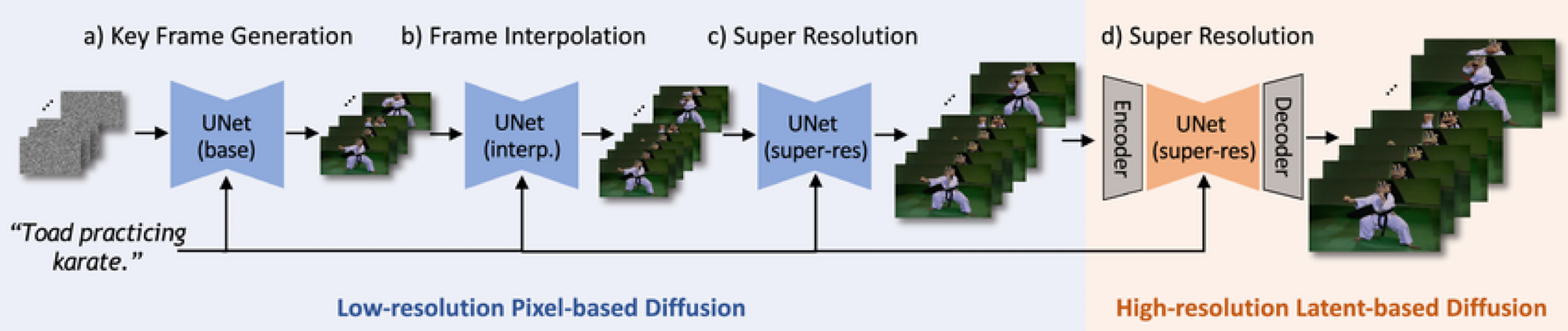
Architecture illustrated in the PDF: the supplied diagram comes from Show-1: Marrying Pixel and Latent Diffusion Models for Text-to-Video Generation. It illustrates a staged approach; it is not the architecture diagram for the CogVideoX implementation below.
-
Stages: the text prompt conditions generation and refinement.
Stage Purpose Key-frame generation Establish a low-resolution sequence of key frames Frame interpolation Generate intermediate frames to increase temporal density Pixel-space super-resolution Increase spatial resolution using pixel-based diffusion Latent-space super-resolution Refine the video to higher resolution using latent diffusion
< CogVideoX: text-conditioned video diffusion >
- Components: CogVideoX uses a text encoder, a video variational autoencoder, and a diffusion Transformer. The text encoder represents the prompt, the denoiser refines noisy video latents, and the decoder produces frames. See the CogVideoX pipeline documentation.
- Checkpoint scope: the example uses
zai-org/CogVideoX-2b, the current location of the checkpoint namedTHUDM/CogVideoX-2bin the slides. Model families may include different text-to-video and image-to-video checkpoints; choose the pipeline and inputs supported by the particular checkpoint. - Inference: calling a pretrained pipeline samples a video using existing parameters. It does not train or fine-tune the model.
< Frames, playback rate, and denoising steps >
-
Separate controls: frame count determines how many images are generated; frames per second (FPS) determines their playback rate; inference steps determine the denoising work used to generate the sequence.
Setting Example Meaning num_frames49Generate 49 frames Export fps8Display eight frames per second num_inference_steps20Use 20 sampling steps; this is not the number of frames guidance_scale6Control the strength of text guidance Seed 42Initialize the random generator for repeatability within a fixed setup -
Playback duration: encoding 49 frames at 8 FPS gives approximately 6.125 seconds of playback. Changing FPS changes playback speed; it does not generate additional motion information.
< Memory management >
- CPU offloading:
enable_model_cpu_offload()moves model components between CPU and GPU as needed. Sequential CPU offloading works at a finer granularity and can save more GPU memory at a larger speed cost. Select one offloading strategy for a pipeline instance. - Video decoding: VAE slicing and tiling divide decoding work to reduce peak memory use. These settings trade execution overhead for memory savings; they do not change the prompt or train the model.
Implementation
< Generate a lion video with CogVideoX >
-
Environment: this example follows the PDF's CUDA setup and requires a compatible NVIDIA GPU with sufficient memory. It downloads model weights; generation has not been executed here.
pip install torch diffusers transformers accelerate sentencepiece protobuf safetensors \pillow numpy "imageio[ffmpeg]" "moviepy>=2,<3" torchmetrics -
Input and configuration: retain the PDF's lion prompt, seed
42, guidance scale6, and 20 denoising steps. Use49frames, as in the CogVideoX-2B model-card example, instead of the slide's20. The result will therefore not reproduce the slide's clip exactly.from pathlib import Pathimport torchfrom diffusers import CogVideoXPipelinefrom diffusers.utils import export_to_videoprompt = ("A majestic lion in a sunlit African savanna, sitting regally ""on a rock formation. Golden sunlight illuminates its magnificent mane, ""then a big smile appears on its face")pipe = CogVideoXPipeline.from_pretrained("zai-org/CogVideoX-2b",torch_dtype=torch.float16,)# Choose one offloading strategy rather than enabling both.pipe.enable_model_cpu_offload()pipe.vae.enable_slicing()pipe.vae.enable_tiling()video_frames = pipe(prompt=prompt,num_inference_steps=20,num_frames=49,guidance_scale=6,generator=torch.Generator(device="cuda").manual_seed(42),).frames[0] # The frame sequence for the first generated video.export_to_video(video_frames, "output.mp4", fps=8)Path("video_prompt.txt").write_text(prompt, encoding="utf-8")print(f"Frames: {len(video_frames)}")print(f"Playback duration: {len(video_frames) / 8:.3f} seconds")print("Saved: output.mp4")# Release the generation model before loading an evaluation model.del pipetorch.cuda.empty_cache() -
Expected completion output, not locally executed:
Frames: 49Playback duration: 6.125 secondsSaved: output.mp4 -
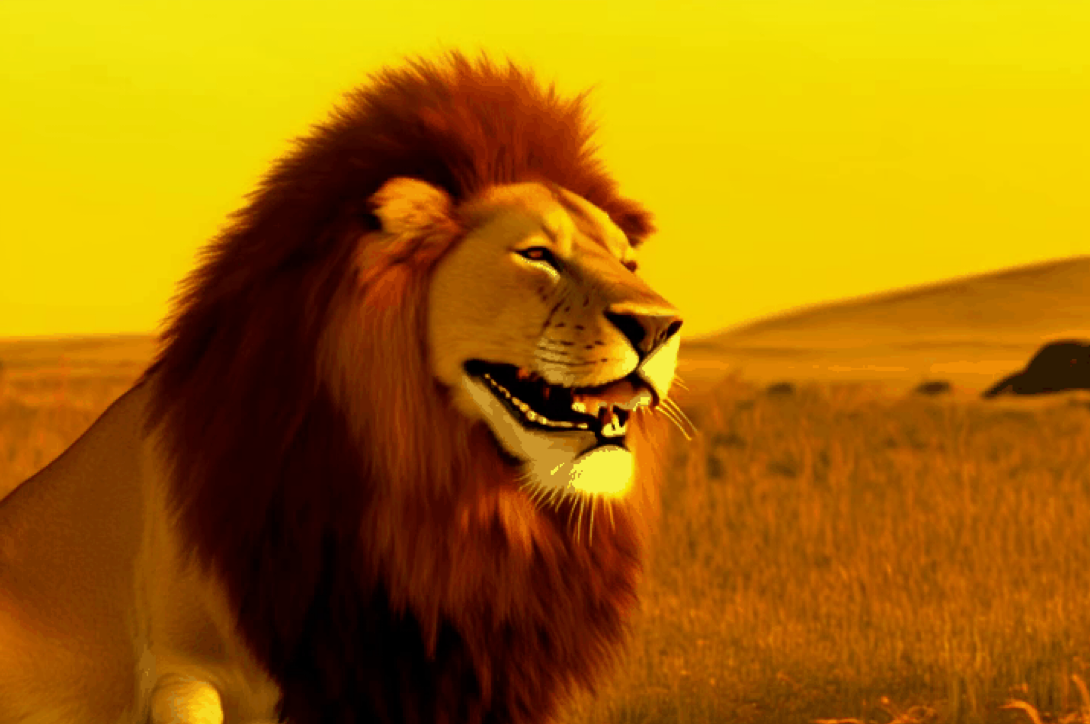
Frame shown in the PDF: this still illustrates the source's generated clip. It is not a video, and it does not establish whether the full sequence depicts the requested transition into a smile.
< Export the MP4 as a GIF >
-
Convert the generated file: MoviePy 2 imports
VideoFileClipdirectly frommoviepy. A context manager closes the reader when conversion finishes. The GIF is a preview format; it does not add motion or improve the generated video. See the MoviePy 2 migration guide.from moviepy import VideoFileClipwith VideoFileClip("output.mp4") as clip:clip.write_gif("video.gif", fps=8)print("Saved: video.gif") -
Expected completion message, not locally executed:
Saved: video.gif
< Measure frame–prompt alignment with CLIP >
-
Method: score each decoded frame against the same prompt, then average the scores. This adapts the PDF's frame-by-frame calculation while loading the CLIP model once through TorchMetrics'
CLIPScoreclass. See the TorchMetrics documentation. -
Concrete example: illustrative frame scores of
29,30, and28produce a mean of29. This reproduces the averaging illustration in the slides, not an additional model evaluation. -
Input transformation: each decoded RGB frame is an unsigned 8-bit array with shape
(height, width, 3). Reordering dimensions and adding a batch axis produces(1, 3, height, width), with pixel values in[0, 255].from pathlib import Pathimport numpy as npimport torchfrom diffusers.utils import load_videofrom torchmetrics.multimodal import CLIPScoreprompt = Path("video_prompt.txt").read_text(encoding="utf-8")frames = load_video("output.mp4")if not frames:raise ValueError("The video contains no decoded frames")metric = CLIPScore(model_name_or_path="openai/clip-vit-base-patch16")metric.eval()with torch.inference_mode():for frame in frames:frame_array = np.array(frame.convert("RGB"), dtype=np.uint8)frame_tensor = torch.from_numpy(frame_array).permute(2, 0, 1).unsqueeze(0)metric.update(frame_tensor, [prompt])avg_clip_score = metric.compute().item()print(f"Average CLIP score: {avg_clip_score:.4f}") -
Result reported in the PDF: the original clip's reported average is shown below. It has not been recomputed here and is not the expected exact score for the adapted generation example.
Average CLIP score: 30.6274 -
Interpretation: this TorchMetrics score is bounded between
0and100; it is not a percentage accuracy or a calibrated probability that the prompt was satisfied. Compare results using the same CLIP checkpoint, prompt, and frame-sampling procedure. Long prompts can also exceed the text encoder's token limit. -
Temporal limitation: averaging independent frame scores discards order. Reversing a clip leaves this average unchanged, even when the reversed action contradicts the prompt. Assess motion, identity consistency, flicker, and event order separately; for this example, inspect whether the lion actually changes from a neutral expression to a smile.
Troubleshoot
< Common generation and evaluation issues >
- GPU memory is insufficient: try sequential CPU offloading instead of model CPU offloading on a fresh pipeline, and keep VAE tiling enabled. Inference can become much slower. Check the memory requirements of the specific model version.
- The frame count is rejected or adjusted: use a count supported by the checkpoint and pipeline; the example follows the documented 49-frame configuration. Inspect
len(video_frames)rather than assuming the requested count was returned. - The clip is too fast or too slow: verify the export FPS. Adjusting playback rate alone does not create smoother, newly generated intermediate frames.
- MP4 or GIF export fails: check the video-writing dependencies and FFmpeg availability. For MoviePy 2, use
from moviepy import VideoFileClip. - CLIP score looks reasonable but motion is incorrect: frame-level similarity can reward a lion and savanna while missing the requested action. Pair the score with inspection of the full clip and task-specific temporal evaluation.
Related ideas
- Multimodal Models classifies models and tasks by input and output modality.
- Diffusion Models covers iterative denoising, conditioning, ControlNet, and inpainting.
- Contrastive Language–Image Pre-training (CLIP) explains image–text similarity and caption scoring.
- Transformer describes the attention architecture used in diffusion Transformers.
- Autoencoders explains compressed representations and decoding.
Reference
- Supplied DataCamp PDF, Video generation, James Chapman, Multi-Modal Models with Hugging Face: Show-1 illustration, CogVideoX example, lion frame, MP4/GIF export, and reported CLIP score.
- Show-1: Marrying Pixel and Latent Diffusion Models for Text-to-Video Generation
- Hugging Face Diffusers: CogVideoX
- CogVideoX-2B model card
- TorchMetrics: CLIP Score
- MoviePy: Updating to version 2